
Want to sell digital products online from your own WordPress website? In this real-life use case we will build exactly that with two or three plugins: Easy Digital Downloads or WooCommerce runs the store, checkout and file delivery, and Restrict for WordPress makes sure only customers who paid can see and download the content. An honest note before we start: Restrict is a content restriction plugin, not a store. It does not take payments and it does not host your files. It gates the content: pages, posts, download links and parts of a page. The selling part stays with EDD or WooCommerce, where it belongs. By the end of this walkthrough you will have a working setup, from the product page to the locked download area.
How it works: Restrict.io locks your content. Easy Digital Downloads or WooCommerce sells the product and delivers the file, and Restrict makes sure only buyers can see and download it. Restrict does not host files or take payments itself.
Why sell digital products
Digital products are the simplest thing you can sell online. No stock, no shipping, nothing to store in a warehouse. Produce the file once, sell it as many times as you like. Ebooks, PDFs, templates, presets, courses, music, photographs, printable designs. The margin is yours to keep.
The catch is delivery. People expect to buy, pay and get the file right away, and they expect that nobody else can see what they paid for. That is exactly what this guide builds: a store where the product page is public, while the content and download links are for buyers only.
What you need
For this setup you need three things:
- A WordPress site, on any theme you like.
- Easy Digital Downloads or WooCommerce. Free. Both handle products, checkout, payments and file delivery. Pick the one you already use, or the one that fits your store: EDD is built for digital products, WooCommerce sells physical and digital in one shop.
- Restrict for WordPress. The plugin that gates content to buyers. It has 86,197 downloads and counting. For the shortcode part of this guide you need a premium license. Plans start at $39 per year for Restrict for WordPress, or $59 per year for the Bundle covering both plugins, with lifetime licenses available and a 7-day trial plus a 7-day money-back guarantee on every purchase.
Install your e-commerce plugin, configure at least one payment gateway so customers can actually pay, and you are ready.
Step 1: Install and activate Restrict
Restrict installs like any other plugin: upload it, activate it, enter your license key. Once active, a Restrict area appears in your admin menu. That is where all the settings live: restriction criteria, custom messages, shortcodes and the login form.
If you need a hand along the way, the full documentation covers installation and every option in detail.
Step 2: Create your digital product
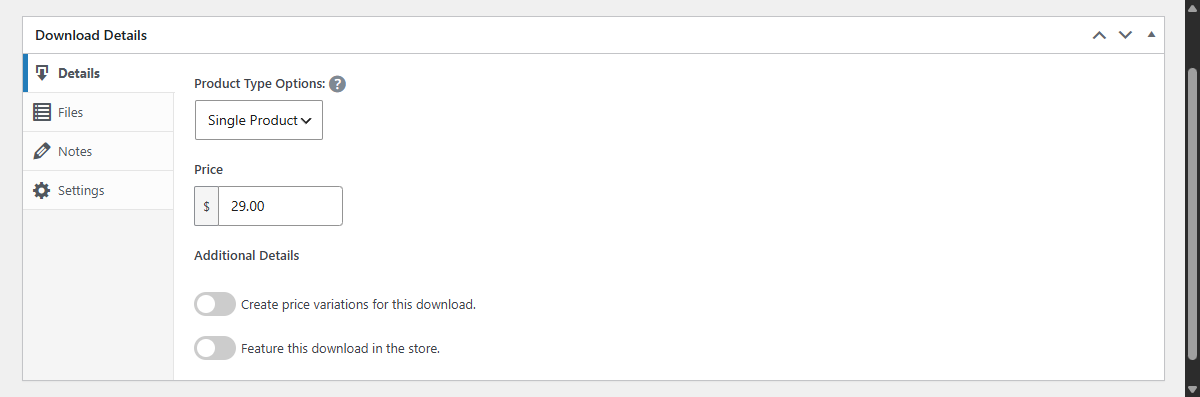
Whichever store plugin you chose, creating the product is the same idea: give it a title, set a price and attach the file customers receive after purchase.
- In Easy Digital Downloads, products are called Downloads. Go to Downloads, click Add New, set the price and upload your file.
- In WooCommerce, create a product and tick the Downloadable box in the product data, then add the file there.
That file is delivered by the store after a successful payment. Restrict does not touch it. What Restrict does is guard the content around it, which is the next step.
Step 3: Restrict content to buyers
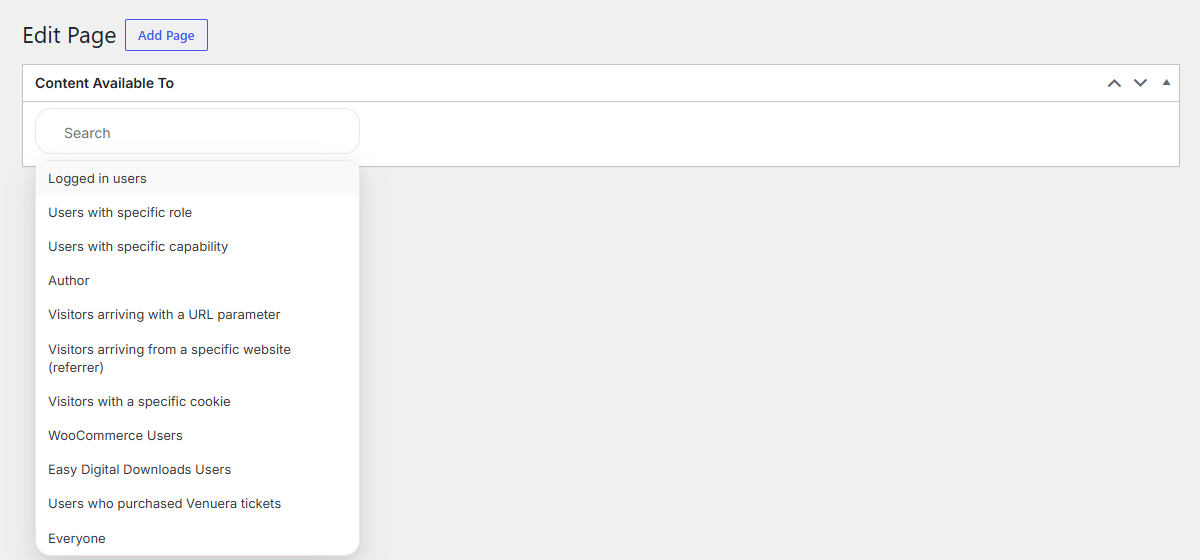
With the product live, open the page or post that holds your premium content and find the dropdown labeled Content available to.
With Easy Digital Downloads
Select Easy Digital Downloads Users. Two options appear. Any product requires the visitor to have purchased at least one of your EDD products. Specific product requires one specific product, which you pick in the field below. Use Specific product when each product has its own content, which is the usual case for digital goods.
With WooCommerce
Select WooCommerce Users. Same idea: Any product grants access to anyone with at least one WooCommerce purchase, Specific product ties access to a single product. Both options also let you limit access to a set time after purchase.
Once saved, only buyers who meet the criteria can view the page. Everyone else sees the message you set in the Easy Digital Downloads or WooCommerce tab inside Restrict settings, where you can include a direct link to the product. A locked page becomes a sales page instead of a dead end.
Step 4: Protect your download links and content
Here is how the pieces fit together. The store delivers the file, and Restrict protects everything around it.
Keep the download link on a page restricted to buyers, and the link is never exposed to non-buyers. The product page stays public, the actual content stays private. The same works for categories: restrict a whole category to buyers and every post in it follows the rule, which saves a lot of clicking when you publish customer-only content regularly.
If you sell rentals or time-limited access, set Limited time after purchase and access expires after the window you choose, down to days, hours and minutes. Restrict revokes access automatically when the time is up.
Step 5: Show non-buyers a teaser
You do not have to hide everything. A common setup keeps the beginning of the content public and locks the rest. Visitors read enough to want more, then hit the buy link. That sells better than a wall.
- Head to Restrict, then Shortcodes, and find the Easy Digital Downloads or WooCommerce Users area.
- Pick your criteria, for example Specific product with the product in question, and click Copy.
- Wrap the premium part of your page with the generated shortcode, and add a custom message with the protected_message argument if you like:
[rsc_restrict_content allowed_to=”edd” edd_options=”anything” protected_message=”Buy this to see the rest”]Your content here[/rsc_restrict_content]
The teaser stays public, the premium part is for buyers. Shortcodes are a premium feature, which is why this guide uses the premium license. The shortcodes documentation explains them in general.
Conclusion
You now have a working digital products store on WordPress: a product page, a checkout, file delivery handled by EDD or WooCommerce, content gated to buyers, protected download pages and a teaser that sells the rest. The setup scales. Add more products, more tiers, categories of customer-only posts, time-limited access, and it keeps working.
Restrict is not a store and does not pretend to be one. It is the gate: 86,197 downloads, one job, works with the theme you already have. The same integration works with WooCommerce Subscriptions for recurring billing, and you can reserve content for Tickera and Venuera ticket holders, or personalize pages by URL parameter, referrer or cookie.
Restrict for WordPress starts at $39 per year, or $59 per year for the Bundle with both plugins. Lifetime licenses are available, and every purchase comes with a 7-day trial and a 7-day money-back guarantee. See the pricing page and pick the license that fits your site.