
Want to sell coaching online from your own WordPress website? In this real-life use case we will build the content side of an online coaching business with two or three plugins: WooCommerce or Easy Digital Downloads takes the payments, and Restrict for WordPress locks the client content: session recordings, resources, programs and everything else only paying clients should see. An honest note before we start: Restrict is a content restriction plugin, not a coaching platform. It does not schedule calls and it does not take payments. It gates content: who sees what, and who does not. The selling part stays with WooCommerce or EDD, where it belongs. By the end of this walkthrough you will have a working client area, from the coaching package to the locked session library.
How it works: Restrict.io locks your client content. WooCommerce or Easy Digital Downloads sells your coaching package, and Restrict gives each buyer access to their sessions, resources and programs. Restrict does not schedule calls or take payments – it only gates content.
Why sell coaching online
Let’s say you are a coach. Fitness, language, career, nutrition, business: the field does not matter that much. You have the knowledge, you have the method, and you have a limited number of hours per week for one-on-one work.
Coaching online solves that in a few ways. Recorded sessions and program materials get delivered once and consumed on the client’s own schedule. No more emailing files back and forth or pointing people at a shared drive folder that is a mess by Tuesday. Clients get access the moment they pay, which feels good to them and removes the admin work from you. And because each package has its own content, every client sees exactly their program and nothing else.
The only piece you need to build is the gate: a page that clients can open and everyone else cannot. That is Restrict’s job.
What you need
For this setup you need three things:
- A WordPress site, on any theme you like.
- WooCommerce or Easy Digital Downloads. Free. Both handle products, checkout, payments and file delivery. Pick the one you already use, or the one that fits: WooCommerce is the all-round store, EDD is built for digital products.
- Restrict for WordPress. The plugin that gates your client content to buyers. It has 86,197 downloads and counting. For the shortcode part of this guide you need a premium license. Plans start at $39 per year for Restrict for WordPress, or $59 per year for the Bundle covering both plugins, with lifetime licenses available and a 7-day trial plus a 7-day money-back guarantee on every purchase.
Install your e-commerce plugin, configure at least one payment gateway so clients can actually pay, and you are ready.
Step 1: Create your coaching package
A coaching package is a product. The 4-week fitness program is one product, the 12-week career coaching program is another. Create one product per package, give it a name, set the price and attach any files the client receives after purchase.
- In WooCommerce, create a product and tick the Downloadable box if it comes with files. For a monthly retainer or a recurring program, use the WooCommerce Subscriptions add-on so the package renews automatically.
- In Easy Digital Downloads, products are called Downloads: go to Downloads, click Add New, set the price and upload your materials.
Keep the product page public. That is your sales page, and it should be. What you lock is what comes after the purchase.
Step 2: Restrict client content to buyers
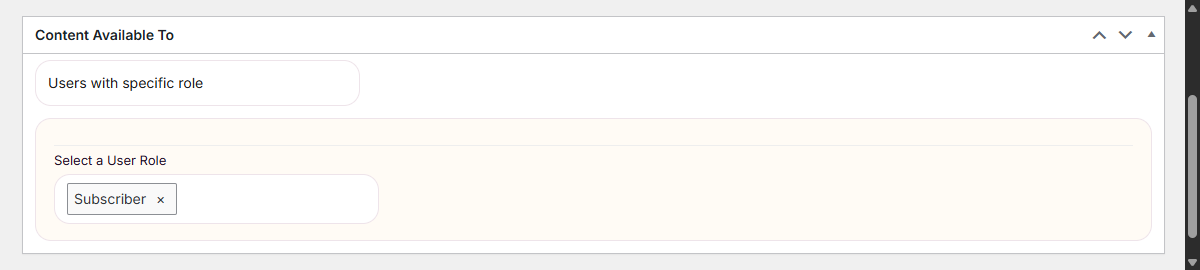
Now build the client area: one page per session, program or resource, or a single page with everything. Open the page or post that holds the client content and find the dropdown labeled Content available to.
- Select WooCommerce Users (if you use WooCommerce) or Easy Digital Downloads Users (if you use EDD).
- Choose Specific product and pick the package this content belongs to. Clients who purchased that product get access; everyone else does not.
The Any product option works too, for content shared across all clients. Both integrations also let you set access to last only a limited time after purchase, which is useful for time-boxed programs.
Clients who do not qualify see the message you set in the WooCommerce or Easy Digital Downloads tab inside Restrict settings. Add a link to the product there, and a locked page turns into a sales page: the visitor sees exactly what to buy and can buy it in a few clicks.
Step 3: Personalize content per client
Not every visitor should see the same page. Someone coming from your newsletter might deserve a free session offer, someone from a partner website a tailored welcome, and someone who already has a cookie from a previous visit a return offer. Restrict ships with three visitor-based criteria for this, no login required:
- Visitors arriving with a URL parameter. The content shows only when the address contains the parameter, for example yoursite.com/free-session/?src=newsletter.
- Visitors arriving from a specific website. The content shows only when the referrer contains the text you enter, for example facebook.com.
- Visitors with a specific cookie. Handy for returning visitors or A/B testing setups.
Set them the same way as the buyer criteria: in the Content Available To dropdown, pick Visitors arriving with a URL parameter, Visitors arriving from a specific website (referrer) or Visitors with a specific cookie, then fill in the fields that appear. With the premium version, the same criteria work in shortcodes, so you can personalize just a part of a page:
[rsc_restrict_content allowed_to=”url_parameter” url_parameter_key=”src” url_parameter_value=”newsletter”]Content for the newsletter visitors[/rsc_restrict_content]
The landing page personalization guide covers the criteria and the matching rules in detail.
Step 4: Show a teaser and add a login form
Two touches make the difference between a wall and a funnel.
First, the teaser. You do not need to hide an entire page. Keep the beginning of your coaching program description public and lock the rest: head to Restrict, then Shortcodes, pick your criteria and the package, and wrap the premium part with the generated shortcode. Visitors read enough to want more, then hit the buy link. The teaser stays public, the full content stays for clients.
Second, the login form. Clients will log in constantly, so make it painless. In the Restrict area of your back end, open the Login Form tab. There you can adjust the labels, set a Redirect URL and copy the automatically generated shortcode. Paste it on your client area page, or use the built-in Gutenberg block if you build with blocks. Set the Redirect URL to the client area, so people land on their content right after signing in. The login form documentation walks through both options.
Step 5: Menus and widgets for clients
Your navigation should match the visitor. In WordPress, go to Appearance and open Menus. With Restrict active, every menu item has a Menu available to dropdown:
- Show a Client Area link only to logged-in users or to a specific role.
- Show a Log in item to logged-out visitors and hide it automatically once they sign in.
- With WooCommerce or EDD installed, you can show menu items only to paying clients.
Widgets work the same way: each widget has a Widget visible to dropdown, so a client-only widget can live in your sidebar without visitors seeing it.
One tip from our menu items guide: hiding a menu item does not protect the page. Anyone with a direct link can still open it, so always combine menu visibility with actual page and post restriction. The menu items and widget visibility guides show the full criteria list.
Conclusion
You now have the content side of an online coaching business on WordPress: coaching packages as products, payments handled by WooCommerce or EDD, client content gated to buyers, personalized pages by URL parameter, referrer or cookie, a teaser that sells the rest, a login form that keeps clients inside your site, and menus and widgets that adapt to the visitor. The setup scales: more packages, more programs, subscription retainers through WooCommerce Subscriptions, and even content reserved for Tickera and Venuera ticket holders.
Restrict is not a coaching platform and does not pretend to be one. It is the gatekeeper: 86,197 downloads, one job, works with the theme you already have.
Restrict for WordPress starts at $39 per year, or $59 per year for the Bundle with both plugins. Lifetime licenses are available, and every purchase comes with a 7-day trial and a 7-day money-back guarantee. See the pricing page and pick the license that fits your site. Full setup details for every step are in the documentation.
Related documentation
- Restricting the content of a page or post
- Landing page personalization: URL parameter, referrer and cookie criteria
- Login form: add a WordPress login form to any page or post
- Restricting WordPress menu items by user role and login status
- Restricting visibility of WordPress widgets
- WooCommerce integration
- Easy Digital Downloads integration