
Want to create an online course academy on WordPress? In this real-life use case we will build one with two or three plugins: WooCommerce or Easy Digital Downloads takes the payments, and Restrict for WordPress locks the lessons and modules so only paying students can see them. An honest note before we start: Restrict is not an LMS. It does not grade quizzes, issue certificates or track progress, and it does not host your videos. Video hosting is a separate service, the selling is EDD’s or WooCommerce’s job, and Restrict is the gate: it decides which student can open which lesson. By the end of this walkthrough you will have a working academy, from the course product to the locked lesson pages.
How it works: Restrict.io locks your lessons. WooCommerce or Easy Digital Downloads sells the course, and Restrict gates each lesson or module for the students who bought it. Restrict is not an LMS – it does not host video, run quizzes or track progress; it only controls access.
Why build an online academy
If you have knowledge people pay for, an academy turns it into something that sells while you sleep. One course built once, sold to hundreds of students, on a schedule that suits them. The alternative is a third-party course platform, which takes a cut of every sale and keeps your students on someone else’s turf. On WordPress, the academy is yours: your site, your content, your students, your margin.
The shape is simple. A course is a product. Lessons are pages. Students who bought the product can open the pages; everyone else sees a message instead. That is the whole architecture, and the rest is content.
What you need
For this setup you need four things:
- A WordPress site, on any theme you like.
- WooCommerce or Easy Digital Downloads. Free. Both handle products, checkout and payments. Pick the one you already use.
- Video hosting. Restrict does not host video. Upload your lessons to YouTube, Vimeo or another video service you trust, and embed the players on your lesson pages. This keeps your bandwidth bill sane and your videos where they are served best.
- Restrict for WordPress. The plugin that gates your lessons to students. It has 86,197 downloads and counting. For the shortcode part of this guide you need a premium license. Plans start at $39 per year for Restrict for WordPress, or $59 per year for the Bundle covering both plugins, with lifetime licenses available and a 7-day trial plus a 7-day money-back guarantee on every purchase.
Install your e-commerce plugin, configure at least one payment gateway, and you are ready.
Step 1: Create the course as a product
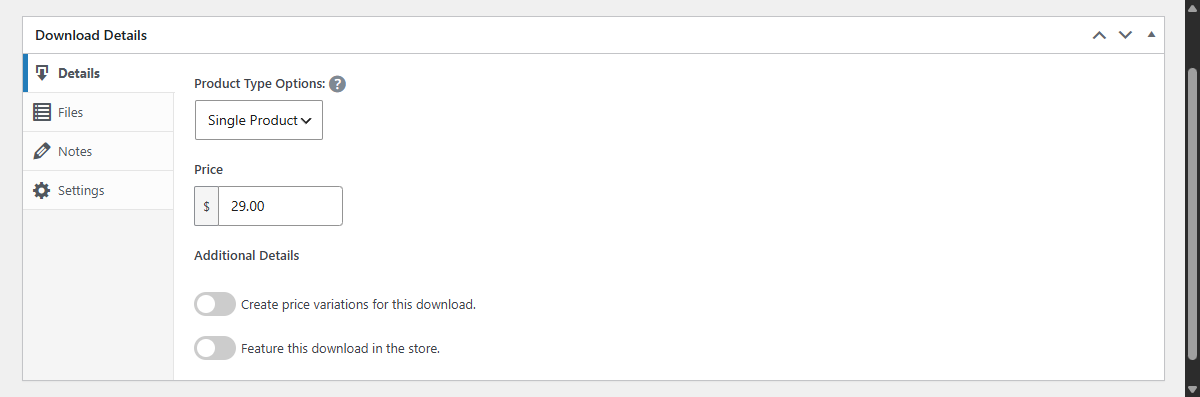
A course is a product, and the product is the entry ticket. Buy it, get access. In WooCommerce, create a product per course and set the price. In EDD, products are called Downloads: add one per course.
For an academy with several courses, create one product per course, each with its own price. For a bigger program sold as modules, create a product per module bundle: Module 1, Module 2 and so on. That structure matters in the next steps, because it lets you sell the whole academy, individual modules, or both.
Step 2: Structure the lessons
Now build the content. Create one page per lesson, and group lessons into modules. The cleanest way: put each module’s lessons in their own category. In WordPress, create categories like Module 1, Module 2, and assign each lesson page to its module category.
Why categories? Because Restrict can lock a whole category with one setting instead of configuring every lesson page by hand. Publish a new lesson into the category, and it is protected automatically. For a single short course, a handful of pages without categories works fine; for an academy with dozens of lessons, categories save you hours.
Step 3: Restrict lessons to students
Lock the content. For each course, open the lesson pages (or the module category) and set the restriction.
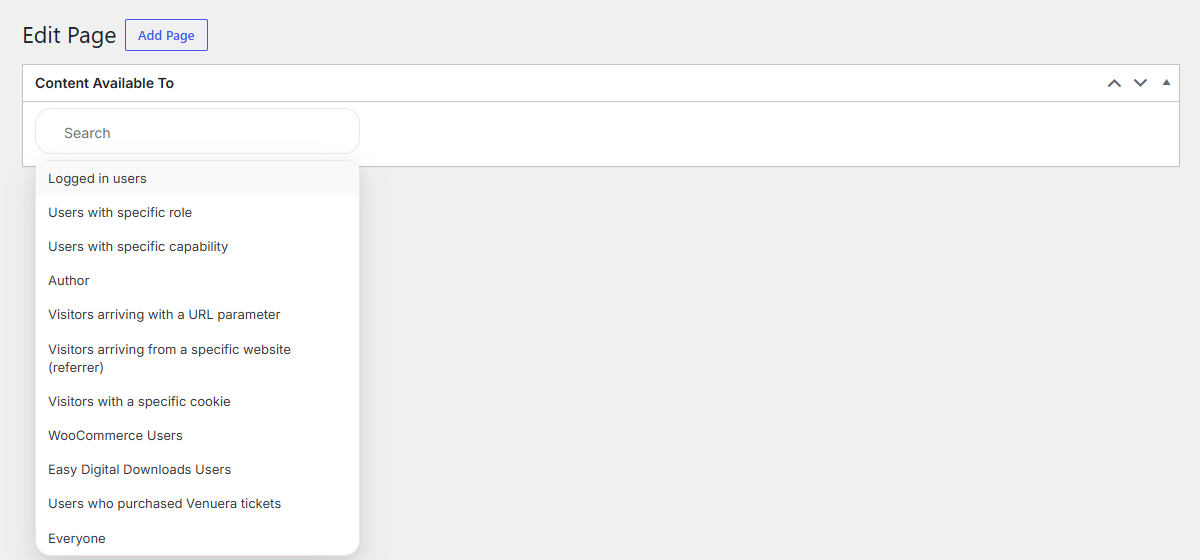
For a whole course: open one lesson page, find the dropdown labeled Content available to, select WooCommerce Users (or Easy Digital Downloads Users), choose Specific product and pick the course product. Repeat per lesson, or set the same criteria once on the module category, and every lesson in it inherits the rule.
For module-by-module selling: restrict Module 1’s pages to the Module 1 product, Module 2’s pages to the Module 2 product, and so on. Students buy the modules they want, and each module opens only when its product is purchased. This is where the product structure from Step 1 pays off.
Students who have not bought the course see the restriction message instead of the lesson. Make it a sales pitch: in the WooCommerce tab of Restrict settings, use the [rsc_woo_product_links] placeholder in the message, and it displays the course title as a clickable link straight to the product page. A locked lesson becomes the last push to buy.
Step 4: Pace the course with time-based access
Many academies do not want students to keep access forever. Restrict handles this with time-based restriction: access lasts a set number of days, hours and minutes after purchase, then expires automatically.
Set it in the same Content available to dropdown: pick your WooCommerce criteria and Specific product, and below the option you will see Duration with Indefinitely and Limited time after purchase. Choose Limited time after purchase and set the window, for example 30 days for a cohort course or a one-month pass. The countdown starts at each student’s own purchase, so every student gets their own full window.
One honest clarification: this is an access window, not a calendar drip schedule. Restrict does not unlock lesson number three on day three. If you want that pacing, sell modules as separate products, as in Step 3, and students move through modules as they buy them. For a time-boxed cohort academy, the time-based window does the job on its own. Expired students see a message you control: set Specific product (limited time) in the WooCommerce tab, explain that access ended and link to repurchase. The time-based content restriction guide covers the feature in full.
Step 5: Menus and login for students
Two touches keep the academy comfortable to use.
Login. Students will log in constantly, so put the login where they need it. Copy the login form shortcode from the Login Form area of Restrict, and paste it into the restriction message: a returning student can sign in right on the lesson page, and the content appears the moment they do. The login form documentation covers the details.
Menus. In WordPress, go to Appearance and open Menus. With Restrict active, every menu item has a Menu available to dropdown: show a My Courses link only to logged-in users, or with WooCommerce or EDD installed, only to customers who purchased a course. Keep course links out of the public navigation. One tip from the docs: hiding a menu item does not protect the page, so always combine menu visibility with the actual restriction from Step 3. The menu items guide lists all the criteria.
Conclusion
You now have an online academy on WordPress: courses as products, lessons structured by module, content gated per course or per module, time-based access for cohort programs, and a login form and menus that keep students inside your site. The setup scales from a single course to a full academy, and it all runs on the theme you already have.
Restrict is not an LMS and does not pretend to be one. If you need quizzes, certificates and progress tracking, that is a different tool. Restrict is the gatekeeper: 86,197 downloads, one job, works with the theme you already have. The same integration works with WooCommerce Subscriptions for course memberships, and you can reserve content for Tickera and Venuera ticket holders, or personalize pages by URL parameter, referrer or cookie.
Restrict for WordPress starts at $39 per year, or $59 per year for the Bundle with both plugins. Lifetime licenses are available, and every purchase comes with a 7-day trial and a 7-day money-back guarantee. See the pricing page and pick the license that fits your site. The broader course-selling walkthrough is in selling online courses on your website, and the full documentation covers every other option.